GeminiMan WearOS Manager
- 4.8
- Rating
- 100.00K
- Installs
- Free
- Price
 Analysis by App-foxy
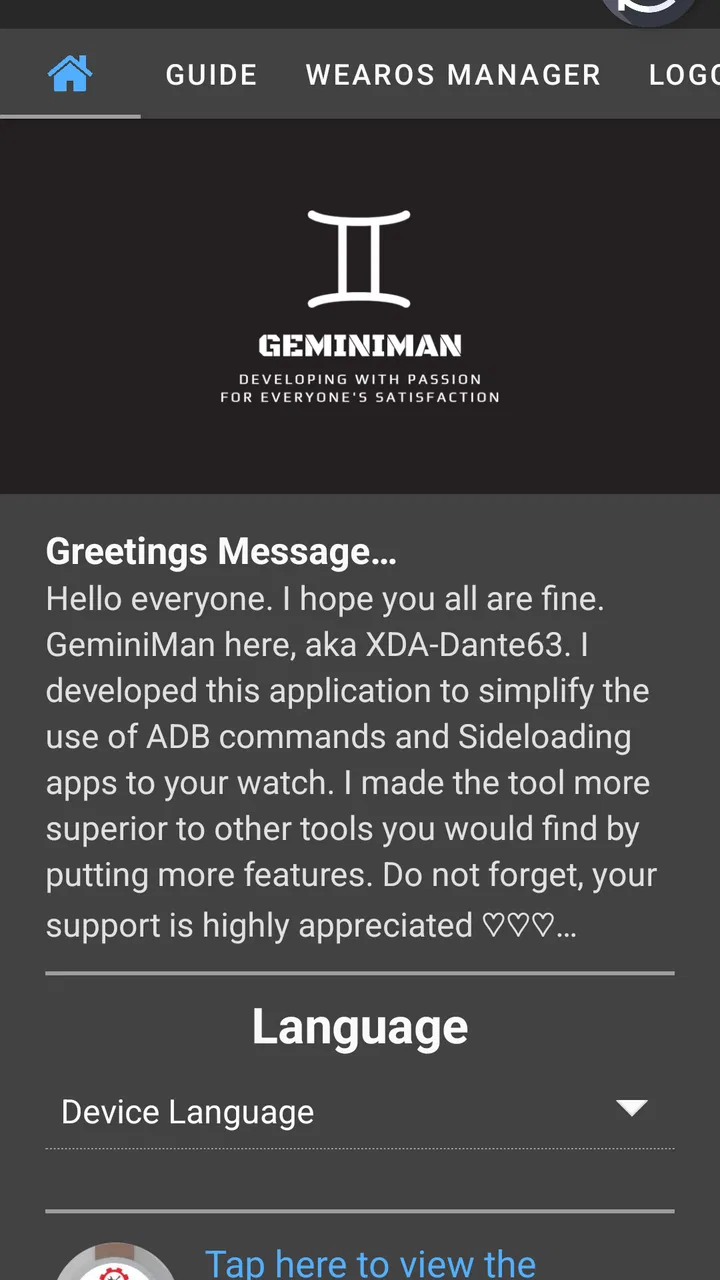
I installed GeminiMan WearOS Manager expecting a small companion utility, but it feels more like a practical control panel for people who want to manage a Wear OS watch from a phone without constantly reaching for a computer. It belongs to the personalization category, although its real appeal is technical rather than decorative. Instead of changing watch faces or adding visual themes, it focuses on Wi-Fi ADB tools, app management, Logcat, backups, shell commands, and related maintenance tasks.
That distinction matters. This is not the kind of app I would recommend to someone who only wants a nicer watch face. I would recommend it to a Wear OS owner who enjoys adjusting the device, testing applications, collecting diagnostic information, or keeping a repeatable maintenance routine. In my experience, the biggest benefit is having several advanced tools gathered in one mobile interface rather than switching between unrelated utilities and a desktop terminal.
GeminiMan, the developer, has made the app available for free, with optional in-app purchases ranging from $0.99 to $4.99 per item. It is rated for Everyone, runs on Android 9 or later, and the current version is 6.0.6. The app has passed 100K installs, with a 4.8 average from around 2.6K ratings and 207 written reviews. Those figures suggest a focused audience that is generally happy with the tool, but they should not be mistaken for proof that it is effortless for every user.
You May Also Like

 Blood Strike: 2.5 Anniversary
Blood Strike’s Loadouts Turn Every Drop Into a Tactical Gamble
A close look at Blood Strike’s custom loadouts: how fast access to signature weapons reshapes its battle royale rhythm, rewards preparation, and narrows the gap between fights.

 Pandora - Music & Podcasts
Pandora’s Music Is Easy to Start, but Harder to Recover
Pandora’s strength is its low-effort path from a seed to a station. Its weak spot is how much confidence it asks you to place in connection, setup, and quiet recovery.

 8 Ball Pool
8 Ball Pool Is Built on Rivalries, Rematches, and Routine
A close look at the rivalries, rematches, shared routines, and unanswered safety questions that turn a quick pool match into a persistent mobile community.

 Samsung Music
Samsung Music’s Quiet Strength Is Playing What You Already Own
Its reach comes less from spectacle than from dependable access to a personal library. That simplicity is both the app’s strongest retention engine and its ceiling.

 AccuWeather: Weather Radar
AccuWeather Review: A Quick, Clear Forecast for Everyday Decisions
For everyday plans, the best forecast is the one you can understand quickly. AccuWeather makes rain timing, radar, and local conditions easy to act on, with a few trade-offs.

 Hill Climb Racing
Why Hill Climb Racing Still Turns Crashes Into One More Run
A tiny car, a bumpy hill and one more upgrade: Hill Climb Racing keeps resurfacing because its simple chaos makes every near-miss feel personal.
More From Our News Desk



How I use it as a daily Wear OS control panel
My baseline workflow starts with a simple question: what am I trying to do on the watch? If the task is ordinary personalization, such as selecting a watch face, I use the normal Wear OS settings or the watch maker’s companion app. If the task involves inspecting the system, moving through installed applications, capturing logs, creating a backup, or running a shell command, this is where GeminiMan WearOS Manager becomes useful.
The Wi-Fi ADB connection is the foundation for that workflow. ADB can feel intimidating when it is presented through a computer terminal, especially for someone who only wants to inspect a watch or perform one controlled maintenance task. Having the process inside an Android app makes the idea more approachable, but it does not remove the need to understand what the command or operation is meant to do.
I would prepare the watch before opening the tool. Make sure both devices are ready to communicate over the same local network when required, keep the watch sufficiently charged, and avoid beginning a system change when you are about to leave home. The app can make access more convenient, but convenience should not turn into careless experimentation.
Once connected, I treat the interface as a workbench rather than a one-tap optimizer. I first identify the installed app or diagnostic area I need, then make one change at a time. This habit is more important than it sounds. If several settings are altered together and the watch later behaves differently, it becomes difficult to know which action caused the problem.
The app’s app-management tools are particularly useful when I am testing a watch application that I do not want to keep permanently. Instead of navigating through the watch’s small display, I can work from the phone and make the process easier to inspect. This is also a better setting for comparing a few utilities because the phone gives me more room to read names and organize the task mentally.
Backups fit naturally into the same routine. I would create one before experimenting with shell commands or making a change that could affect the way I use the watch. A backup is not a substitute for knowing what is being saved or how restoration works, so I would still read the relevant screen carefully. The practical advantage is that backup becomes part of the same maintenance session instead of an afterthought.
Settings I would check before doing anything advanced
The first setting worth checking is the connection setup itself. Wi-Fi ADB is powerful, but it depends on a suitable connection between the phone and watch. If the devices cannot see each other, repeatedly tapping reconnect is unlikely to solve the underlying issue. I would check the local network, confirm that the watch is awake, and restart the connection process rather than assuming the app is broken.
I would also review the app’s access and connection prompts slowly. Tools that send commands to a watch deserve more attention than a typical wallpaper app. When a dialog asks me to approve a connection or authorize an action, I want to know whether I am beginning a session, running a command, or changing something persistent. This small pause prevents the common mistake of treating every confirmation button as harmless.
Logcat deserves its own place in the routine. It is not just a screen to open when something feels wrong. I find it more useful when I already have a specific symptom in mind: an app closes, a function does not respond, or a watch process behaves strangely. I reproduce the issue, inspect the available log information, and note the approximate sequence of events. Without that discipline, Logcat can become a stream of technical text that looks impressive but does not lead to a decision.
A useful tip is to keep a short change record outside the app. I write down the command or adjustment, the reason for using it, and whether the watch improved afterward. This is especially valuable when testing several watch applications over time. It turns GeminiMan WearOS Manager from an occasional toolbox into a repeatable troubleshooting system, and it prevents me from repeating an experiment simply because I forgot what happened last time.
The backup area is another place where patience pays off. I would not assume that a backup automatically covers every personal item in the same way as a full phone backup. I use it as a safety step connected to the app’s own management workflow, then keep expectations realistic. If the watch contains something important, I would verify the available backup information before relying on it as my only recovery plan.
Shell commands are the setting that requires the clearest boundary. The app gives experienced users a more convenient way to work with commands, but it cannot make an unsafe command safe. I would only run a command whose purpose I understand, and I would avoid copying instructions from a random forum without checking whether they match my watch and software state. The phone is a convenient terminal, not a permission slip to modify everything.
Faster patterns that make the app worth keeping
The fastest pattern I found is to separate exploration from maintenance. During exploration, I inspect apps, read logs, and test a command carefully. During maintenance, I repeat only the steps that have already proved useful. Mixing those two modes wastes time and increases the chance of changing something accidentally.
For example, imagine I am preparing for a long day away from a charger and want to understand why a particular watch app is consuming attention or behaving inconsistently. I would first reproduce the problem, use Logcat to gather context, and inspect the relevant application through the manager. I would then record what I found before trying a change. If the result is positive, I can repeat that known workflow later instead of starting from scratch.
Another practical pattern is to use the phone as the planning screen and the watch as the result screen. Small watch displays are fine for quick actions, but they are not ideal for comparing app names, reading technical output, or keeping track of a multi-step process. GeminiMan WearOS Manager is most comfortable when I decide the goal on the phone, perform a controlled action, and then verify the effect on the watch.
I also like grouping tasks by risk. Low-risk inspection comes first, followed by app management, then backups and commands that may affect the system. This order gives me useful information before I make a deeper change. It also means that if I stop halfway through, I have not started with the most disruptive operation.
Shortcuts and habits matter more than speed alone. I keep the same naming logic for notes, use the same order for checking the connection, and avoid running several commands in one session unless there is a clear reason. These habits are not glamorous, but they make technical work easier to repeat and easier to undo.
There is also a good use case for developers and testers. When I am checking how an application behaves on a watch, access to app management and Logcat from the phone can reduce the friction of switching between the watch, phone, and computer. It is not a full replacement for a development workstation, but it can be a convenient field tool when I need to inspect behavior away from my desk.
For ordinary owners, the strongest everyday scenario is troubleshooting rather than customization. A watch app may freeze during a workout, a utility may stop responding after an update, or a test application may need to be removed without navigating a crowded watch interface. In those situations, the manager gives me a more deliberate way to investigate and clean up.
Where the advanced approach reaches its limits
The main limitation is the learning curve. The words ADB, Logcat, backup, and shell command are meaningful to experienced Android users, but they can be confusing to someone who has never used developer tools. GeminiMan WearOS Manager makes access more convenient; it does not turn technical operations into ordinary consumer settings.
I would skip this app if my only goal were watch-face discovery, notification customization, or changing basic display preferences. The regular Wear OS controls and the watch manufacturer’s companion app are usually more direct for those jobs. Installing a technical manager for simple personalization would add complexity without giving me a meaningful advantage.
I would also be cautious if I dislike troubleshooting. The app is most valuable when I am willing to read, compare, and make a reasoned decision. Someone looking for an automatic “fix everything” button may find the experience frustrating because the useful result often depends on understanding the problem first.
Connection reliability is another practical consideration. Wireless ADB is convenient because it avoids a cable and a desktop, but wireless sessions can be more sensitive to network conditions than a direct wired workflow. If I am performing a delicate operation, I prefer a stable environment and enough battery on both devices. I would not start an important backup or command while moving between networks.
There is also a difference between convenience and completeness. A mobile manager can be excellent for targeted actions, quick inspection, and repeatable routines. A computer remains the better choice for large-scale development, extensive log analysis, complex scripting, or work that requires a broader Android toolchain. I see this app as a focused companion, not a complete replacement for every desktop workflow.
Optional purchases are worth considering with the same practical mindset. The app is free to install, while individual in-app purchases sit between $0.99 and $4.99. I would first confirm that the free experience fits my workflow, then pay only for the capability I actually use. That approach is more sensible than buying extras in advance when I may only need the manager for occasional troubleshooting.
The Everyone age rating makes the app broadly accessible from a store perspective, but the technical actions still call for adult-level judgment. A young or inexperienced user could open the app, yet that does not mean every command is appropriate to run without guidance. The risk comes from the operation being performed, not from the age label alone.
Who gets the most value from GeminiMan WearOS Manager
I think the best audience is made up of Wear OS owners who like control and consistency. If you install experimental watch apps, maintain several devices, investigate unusual behavior, or prefer solving problems from your phone, the combination of app management, Logcat, backups, and shell access is compelling.
It is also a good fit for someone who travels with a watch and phone but does not want to carry a laptop for every small technical task. A phone-based workflow can be enough for checking a log, removing a troublesome application, or reviewing a controlled change. I would still keep a more complete recovery option available for serious work, but the convenience is real.
Developers and advanced hobbyists may appreciate the compact workflow most. The phone becomes a practical bridge between the watch and the technical information needed to understand it. The important trade-off is that the app rewards knowledge. The more clearly I know what I am trying to inspect or change, the more useful it becomes.
On the other hand, casual users should not feel they are missing something if they never install it. If the watch works well and the normal settings meet your needs, adding ADB tools may create more questions than answers. I would choose the manufacturer’s companion app for routine setup and reserve this manager for a specific need.
My verdict after building a repeatable routine
GeminiMan WearOS Manager is a specialized Android app that earns its place through concentration rather than simplicity. It brings several advanced Wear OS management tasks into one phone-based workspace, and that makes a noticeable difference when I am diagnosing, testing, backing up, or organizing applications. The ability to work with Wi-Fi ADB, Logcat, backups, and shell commands is far more useful to me than a collection of isolated tools.
My recommendation comes with a clear condition: use it deliberately. Start with inspection, keep notes, make backups before risky experiments, and run only commands you understand. Those habits transform the app from a technical curiosity into a reliable part of a Wear OS maintenance routine.
The 4.8 average and more than 100K installs show that it has found a real audience, while the free entry point makes it easy to test. Still, I would not describe it as essential for every watch owner. It is best for people who want deeper control and are comfortable learning what that control means.
After using it in that mindset, I would recommend it to a technically curious friend without hesitation. The real strength is not one flashy feature, but the repeatable workflow it enables: connect, inspect, change one thing, verify the result, and keep a record. For basic watch personalization, choose the simpler tools already built into Wear OS. For hands-on management from an Android phone, this is a focused and capable option.
FAQs for GeminiMan WearOS Manager
01What is GeminiMan WearOS Manager used for?
GeminiMan WearOS Manager is an Android utility designed to help users manage and interact with Wear OS smartwatches from a phone. Depending on the watch and Android version, it may provide tools for handling watch applications, transferring files, managing settings, viewing device information, and performing maintenance tasks that are not always available through the standard Wear OS companion app. Its exact features can vary by device compatibility.
02Which smartwatches and phones are compatible with GeminiMan WearOS Manager?
Compatibility depends on the specific Wear OS watch, phone model, Android version, connection method, and the features you want to use. The app is generally intended for Wear OS devices, but not every function works universally across Samsung Galaxy Watch, Google Pixel Watch, Mobvoi, Fossil, or other brands. Before downloading, check the developer’s compatibility notes and ensure your watch is properly paired with an Android phone.
03Does GeminiMan WearOS Manager require special permissions or technical knowledge?
Some functions may require permissions such as access to files, nearby devices, notifications, or wireless debugging. Advanced management options can also involve enabling developer settings, ADB, or wireless debugging on the phone or watch. Basic features may be straightforward, but technical tools should be used carefully. If you are unfamiliar with debugging or system permissions, review each instruction before confirming an operation.
04Can GeminiMan WearOS Manager install apps or transfer files to a Wear OS watch?
The application may support app management and file transfers on compatible Wear OS devices, allowing users to move selected files or install supported packages without relying entirely on the usual watch interface. However, Android package formats, security restrictions, watch firmware, and manufacturer limitations can affect the result. Only use applications and files from trusted sources, and avoid modifying system components unless you understand the possible consequences.
05Is GeminiMan WearOS Manager safe to use, and is it free?
The app’s safety depends on downloading it from a legitimate source, granting only necessary permissions, and using its advanced tools responsibly. As with any utility that communicates with a smartwatch or accesses device files, incorrect settings can cause connection problems or unexpected behavior. Availability of free features, advertisements, in-app purchases, or premium tools may vary, so check the current store listing before installation.
Pros
- Simplifies installing and managing Wear OS apps from an Android phone.
- Provides a convenient way to browse compatible watch applications.
- Can reduce the need to search for watch apps directly on a small screen.
- Useful for organizing a growing collection of Wear OS software.
- Offers a focused management experience for GeminiMan WearOS users.
Cons
- Compatibility may vary between different Wear OS watch models.
- Requires a connected Android phone to manage the watch effectively.
- Some features may depend on the installed Wear OS version.
- The interface may feel limited compared with full app stores.
- Users may need extra permissions for installation and device management.

GeminiMan WearOS Manager
Gallery